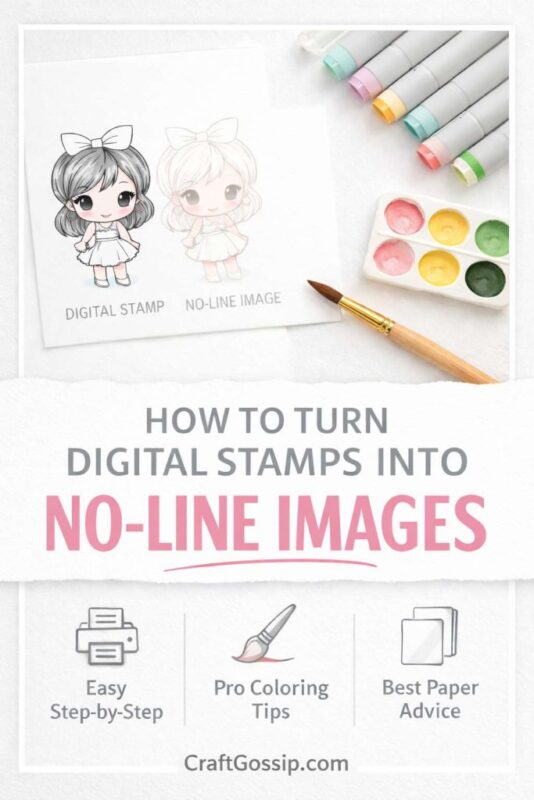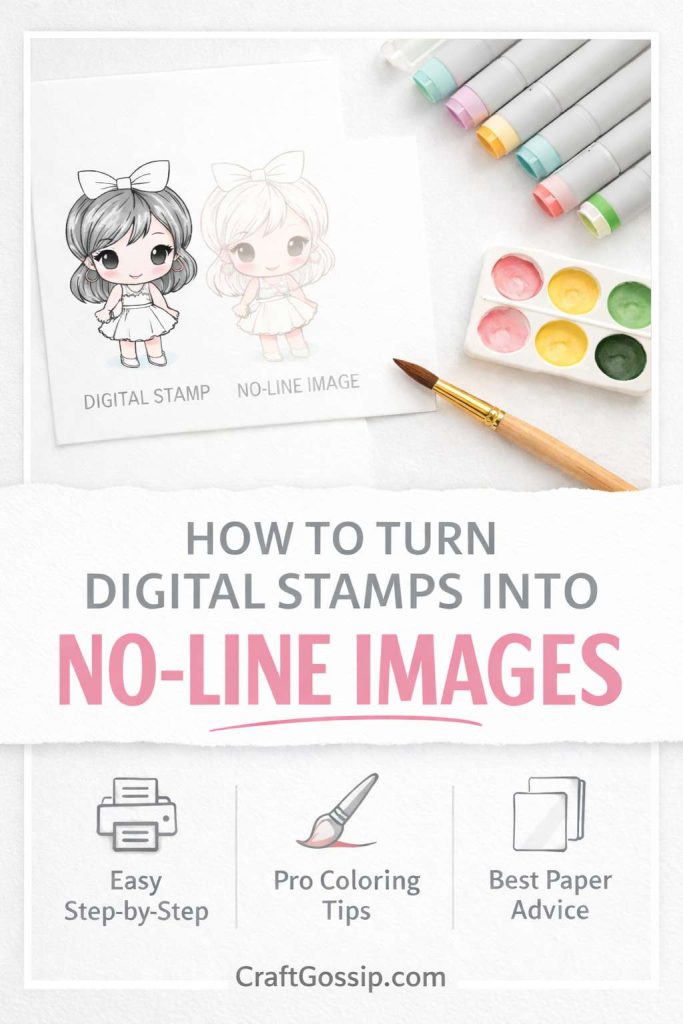
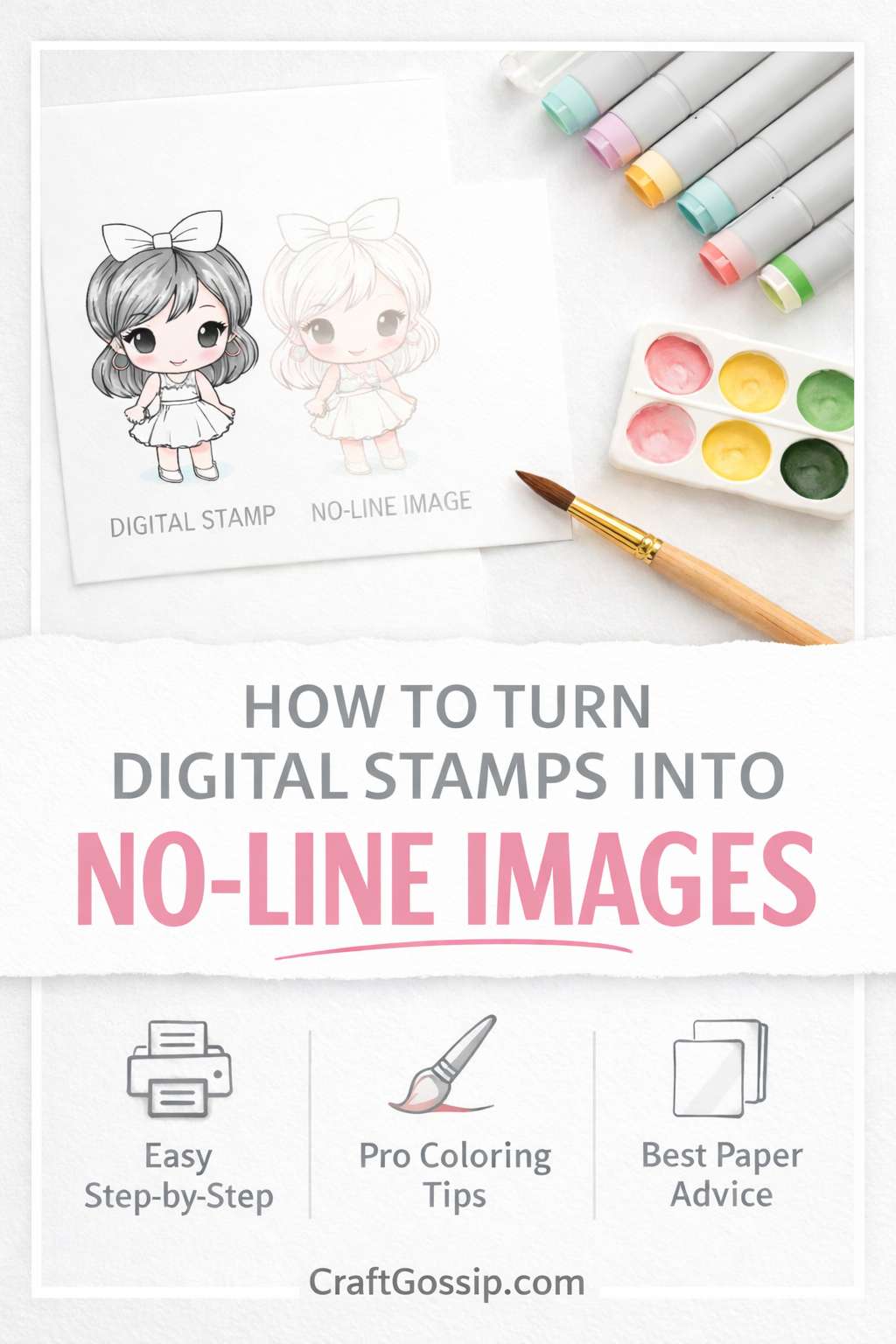
No-line coloring is one of the most popular cardmaking techniques because it creates a soft, hand-painted look without harsh outlines. Traditionally, this technique is done with pale ink and rubber stamps — but digital stamps make it even easier because you can control the opacity before printing.
Digital stamps can be imported into simple software like Microsoft Word, Pages, or Google Docs and adjusted before printing, meaning you don’t need advanced design tools to get beautiful no-line results.
In this guide, you’ll learn exactly how to convert any digital stamp into a no-line image using multiple methods, plus expert tips to get professional results every time.
What Is No-Line Coloring?
No-line coloring is a technique where the stamped outline is softened or nearly invisible, allowing your coloring to define the shapes instead of bold lines.
This technique is popular for:
- Copic coloring
- Watercoloring
- Pencil coloring
- Soft floral designs
- Realistic skin tones
- Painterly card styles
Because digital stamps can be edited before printing, they’re perfect for achieving this effect.
Why Use Digital Stamps for No-Line Techniques?
Digital stamps offer several advantages over traditional stamping:
- You can adjust line opacity instantly
- Resize images without losing quality
- Print multiple variations at once
- Experiment without wasting ink
- Easily layer images for scenes
- No need for specialty ink pads
Plus, you only need a word processor or simple editing software to print digital images.
Method 1: How to Make a No-Line Digital Stamp Using Microsoft Word (Beginner Friendly)
This is the easiest method and requires no graphic design skills.
Step-by-Step Instructions
- Open Microsoft Word
- Insert your digital stamp image (Insert ? Picture)
- Click the image
- Go to Picture Format
- Select Color ? Washout or adjust Transparency
- Lower contrast and brightness until lines look faint
- Print on smooth white cardstock
Tip: Aim for a light grey outline — not completely invisible.
Method 2: Create No-Line Images Using Canva
Great for beginners who want more control.
Steps
- Upload your digital stamp
- Click Edit Image
- Adjust Brightness (+)
- Reduce Contrast (-)
- Reduce Saturation (-)
- Download as PNG or PDF
- Print on cardstock
Method 3: Using Photoshop or Photo Editing Software (Advanced)
For the most control and professional results.
Steps
- Open image
- Add Adjustment Layer ? Hue/Saturation
- Reduce saturation to remove black intensity
- Adjust Levels to lighten lines
- Optional: change line color to light brown
Best Colors to Print No-Line Images
Instead of black ink, try:
- Warm grey
- Light brown
- Soft taupe
- Pale blue for florals
- Antique linen tones
These colors blend naturally when coloring.
Best Paper for No-Line Coloring
Choosing the right cardstock makes a huge difference.
For Alcohol Markers
For Watercolor
- Cold press watercolor paper
For Colored Pencil
- Lightly textured cardstock
Smooth paper helps faint lines remain visible while coloring.
Coloring Tips for Perfect No-Line Results
Start with light layers
Use reference shading
Add shadows early
Define edges with darker tones
Leave highlights
Use fine tip markers
Pro tip: Print multiple copies so you can practice.
Common Mistakes to Avoid
Printing too light (image disappears)
Using textured paper with alcohol markers
Over-saturating with water
Skipping test prints
Using low-resolution images
Frequently Asked Questions
Can I do no-line coloring without special software?
Yes — Microsoft Word or Google Docs works perfectly.
Do I need a special printer?
Any inkjet printer that handles cardstock is ideal.
Can beginners try no-line coloring?
Absolutely — start with simple images like florals.
Creative Ideas for No-Line Digital Stamps
- Watercolor floral cards
- Soft baby cards
- Vintage botanical art
- Hand-painted look scrapbook pages
- Elegant wedding stationery
- Art journaling
Pro Tips From Experienced Cardmakers
Print at multiple opacities on one sheet
Keep original black version for reference
Use a lightbox for tracing if needed
Combine with masking techniques
Try tone-on-tone printing
Final Thoughts
Turning digital stamps into no-line images is one of the easiest ways to elevate your cardmaking. With just a few simple adjustments, you can transform bold outlines into soft guides that let your coloring shine.
Whether you’re using Word, Canva, or Photoshop, this technique opens up endless creative possibilities — from watercolor florals to realistic portraits.
Once you try no-line coloring with digital stamps, it quickly becomes a go-to technique for elegant handmade cards.